Incident Videos
The Incident Videos page provides a detailed view of recorded incidents captured by the system. It allows users to monitor and review incidents efficiently with several viewing options and functionalities. The categories available (e.g., Person Detection, Forklift Collisions, etc.) are based on the modules that are active in the system.
Page Elements
1. Incident Video Filters
At the top of the page, users can filter videos using the following options:
- Severity: A dropdown to filter incidents by severity level (e.g., Low, Medium, High).
- Camera: Allows filtering incidents based on the camera that captured the footage.
- Filter by Date: A date filter to search for incidents occurring during a specific time period.
2. View Modes
The page supports multiple view modes to provide flexible viewing options:
- Grid View: Displays incidents in a grid format with thumbnails, incident details, and quick access actions.
- List View: Displays incidents in a list format with a more compact representation, showing only essential details (such as incident type, camera, severity, and timestamp).
- Calendar View: A calendar-based view where incidents are displayed according to their respective dates, allowing users to locate events visually based on when they occurred.
3. Incident Video Cards
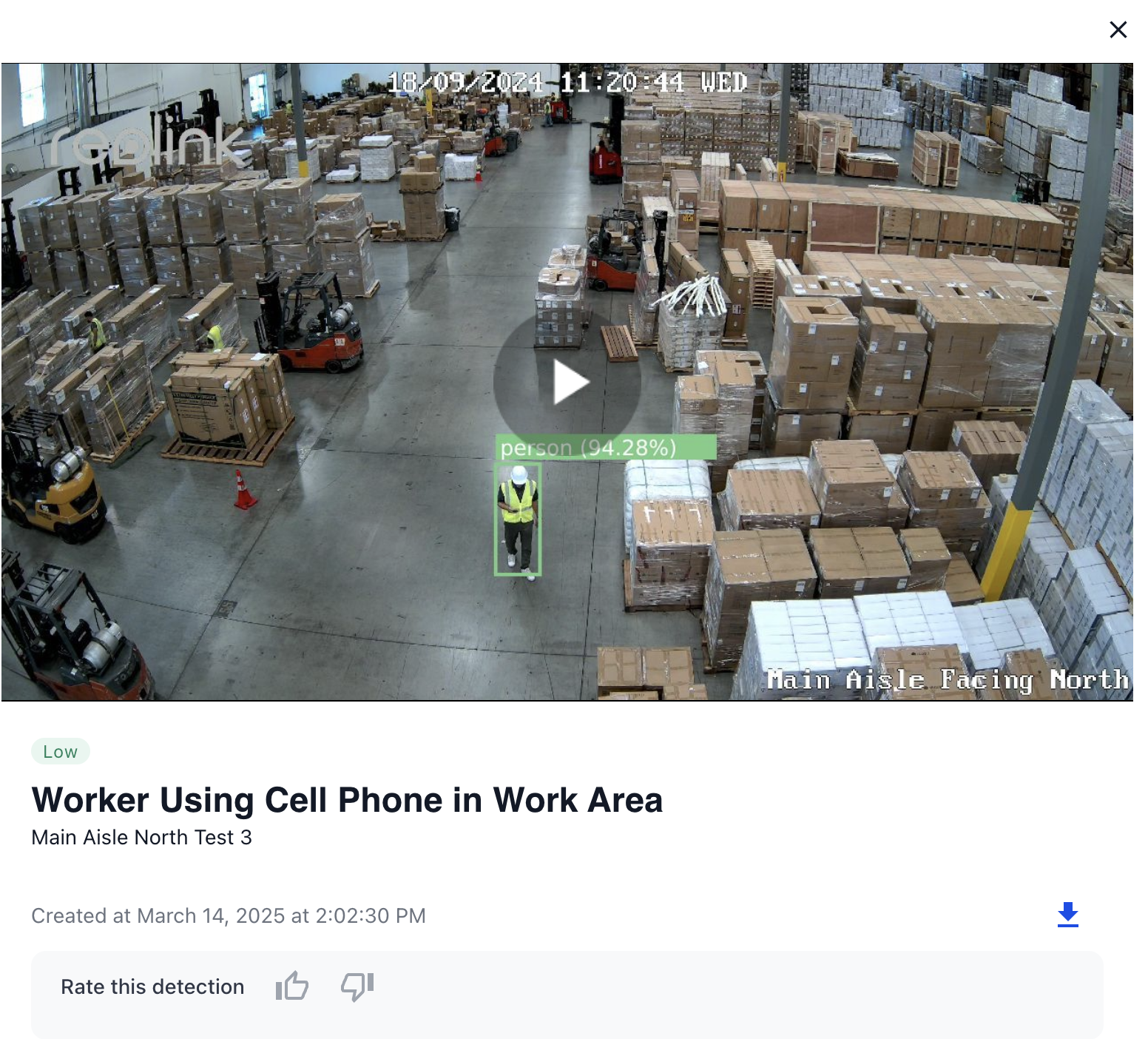
Each incident is displayed as a card in the grid or list view. The card includes the following details:
- Incident Type: A brief title describing the type of incident (e.g., "Employees Wearing Proper Gear").
- Camera: A thumbnail image showing a still from the camera footage, and the name of the camera that captured the event (e.g., "Work Area", "Aisle 21 Bulk 2").
- Severity: The severity of the incident, indicated by a tag (e.g., "Low").
- Created At: The timestamp when the incident occurred (e.g., "October 4, 2024, at 2:15:36 PM").
- Play Button: Clicking this button starts playing the incident video.
- Export Video: Export and download the current video to your system.
- Rate Detection: Allows the user to rate the detection and assist in optimizing Arvist's model training. Learn more in Rate Detection.
4. Viewing an Incident
When a user clicks on an incident card:
- A video player opens up, allowing the user to review the recorded footage.
- Snapshot: A snapshot of the incident is displayed as a placeholder for the video. This image is a still frame from the incident and shows the exact location, name of the object, and AI confidence, which can help quickly identify the key event captured.
- Video Controls: Standard video controls are available, including play, pause, and the ability to scrub through the video timeline to view specific parts of the footage.
- Download Option: Users can download the video directly using the download icon available on each incident card.
5. Action Buttons
- Play Icon: Click on the play button in the thumbnail to open the video player and review the incident.
- Download Button: Use the download icon to download a copy of the incident video for offline review or reporting.
Example Incident Card:
General Usage
- Filtering Incidents: Use the filters at the top of the page to narrow down the list of incidents by severity, camera, or date.
- Viewing an Incident:
- Click on any incident card to open the video player.
- Review the footage using the video controls.
- View the accompanying snapshot for a quick reference to the incident.
- Download the video if needed for further review or sharing.