Rate Detection
The rate detection feature allows users to provide direct feedback to Arvist about incidents made based on correct or incorrect detections. Rating detections also contributes to optimizing the Arvist AI model for your specific use cases, which in turn results in more correct detections and fewer incorrect ones as time goes on.
Good Detection
If the incident is correct, clicking the thumbs up will let us know that the detection was accurate. No additional actions are necessary.
False Detection
If the incident is incorrect, clicking the thumbs down will let us know that there was a mistake in the AI. This is very important for us to continue to optimize the model for your use case. When clicking thumbs down, an additional step is required. Select from the options presented:
- No safety incident occured: This means an object was correctly detected but the specific incident for this module did not actually occur.
- Example: "Workers Missing Personal Protection Equipment" incident was created, but the detected person is wearing all proper equipment (based on the configuration during module creation)
- The detected object is not present: This means that the desired object is not actually present in the frame.
- Other reason: Select this option if the poor detection does not match the above two options. Please provide an explanation of the poor detection.
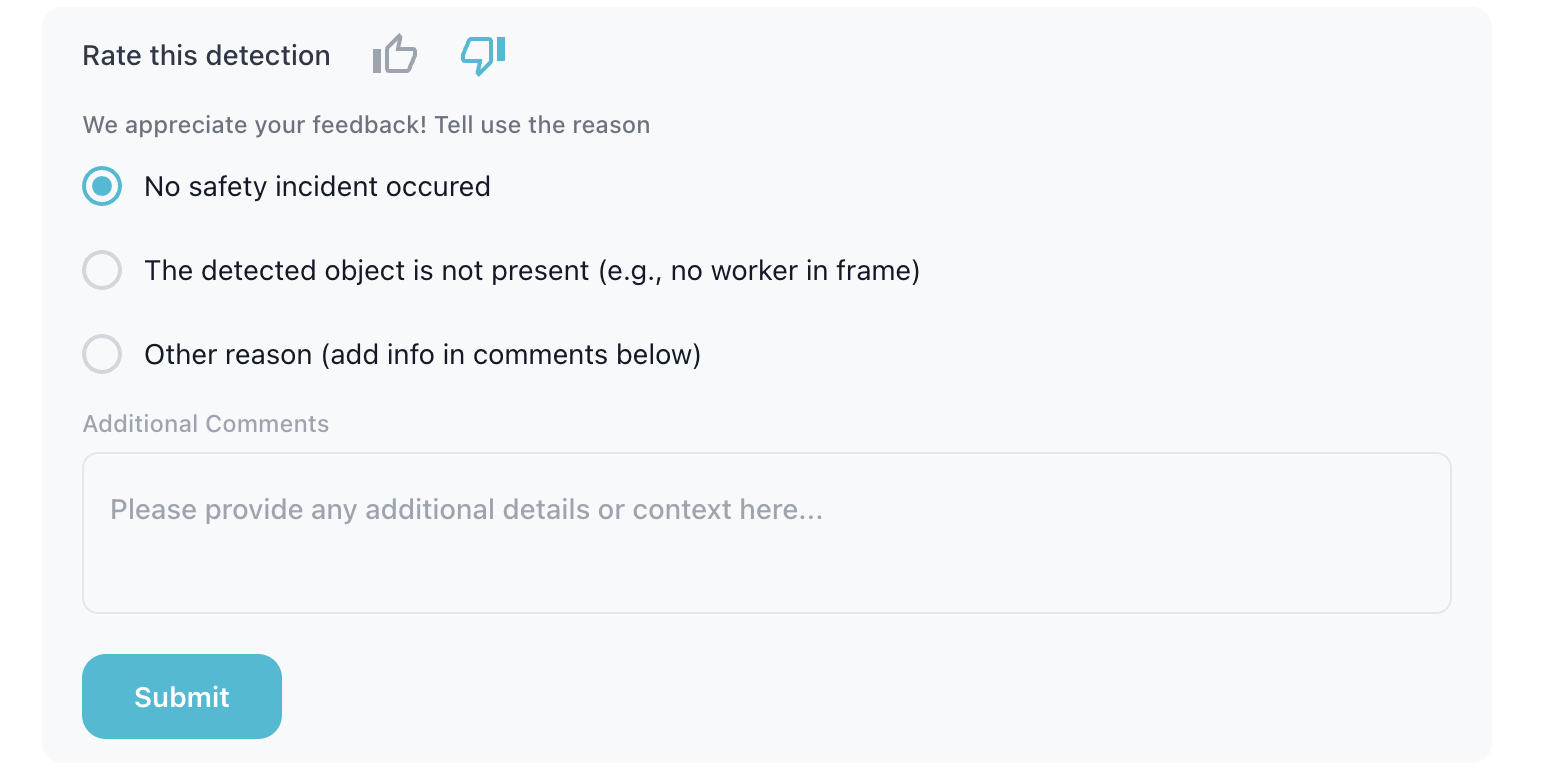
Please make sure that the correct option is selected before clicking "Submit". Once you submit the false detection, the incident will be removed from your incidents list and will not be included in any metrics.
NOTE: Please be sure that the detection is in fact a false positive. Sometimes, the incident image might not line up with the exact moment of the incident creation, but the incident might still have occured. For absolute clarity, review the attached video to determine if an incident is indeed a false positive.
Viewing False Positive Data (Internal Tool Only)
To view the list of current false positives, manually navigate to /compliance/false-positives. This will render a table with the following columns:
- Incident Type: This is the incident name.
- Camera: The camera on which the incident occured.
- Flag Reason: The reason flagged by the user.
- Comments: Any additional comments added by the user for "Other" flag types.
- Flagged At: The date and time the incident was flagged as a false positive.