Area Configuration
The Area Configuration page in the Arvist allows users to group together cameras based on specific locations within the facility. This is particularly useful for organizing areas like docks, gates, and other significant locations to ensure efficient monitoring and management.
Page Overview
1. Navigation to Area Configuration
To access the Area Configuration, navigate through the following steps:
- On the left-hand menu, click on General Settings.
- Select Area Configuration from the dropdown options.
2. Area Configuration Interface
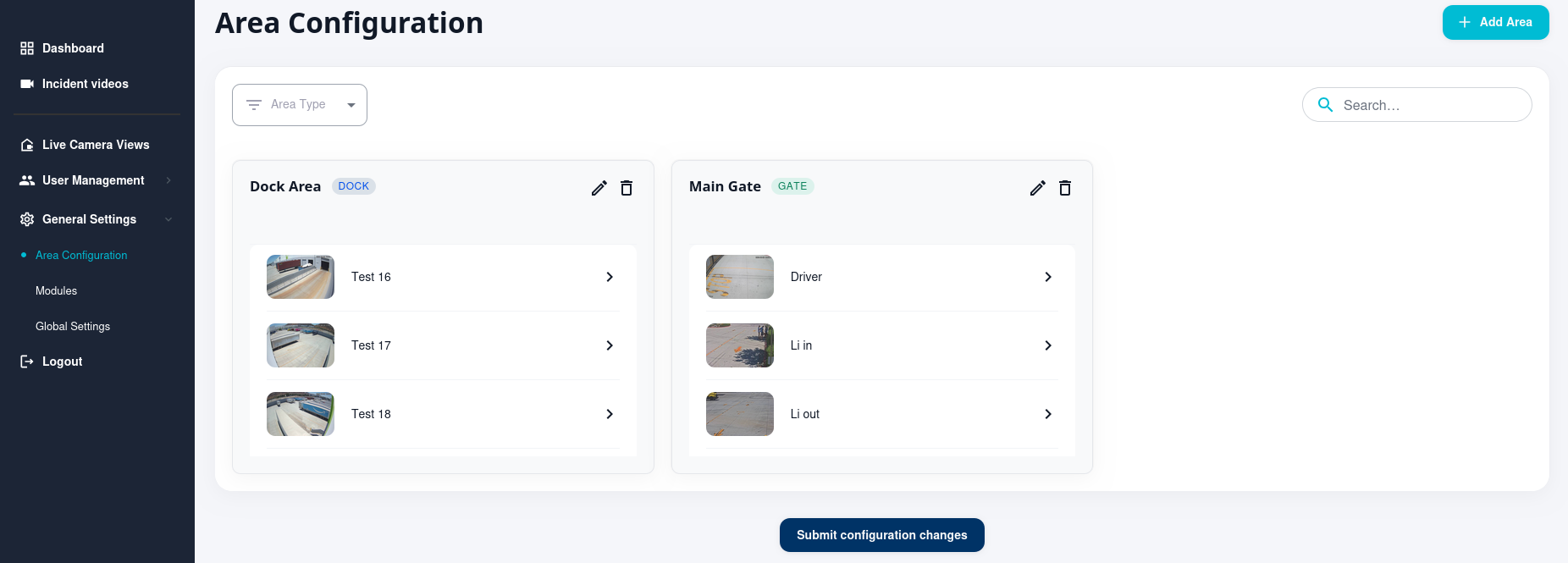
The Area Configuration interface displays a list of defined areas, each containing associated cameras. Each area is represented as a card with the area name, type, and a list of assigned cameras.
- Dock Area: Example of a dock area with cameras labeled Test 16, Test 17, and Test 18.
- Main Gate: Example of a gate area with cameras labeled Driver, Li in, and Li out.
3. Adding a New Area
To add a new area:
- Click on the + Add Area button located in the top right corner.
- A dialog box will appear allowing you to define the new area.
4. Editing an Existing Area
To edit an existing area:
- Click the Edit icon (pencil) on the top right of the area card you wish to modify.
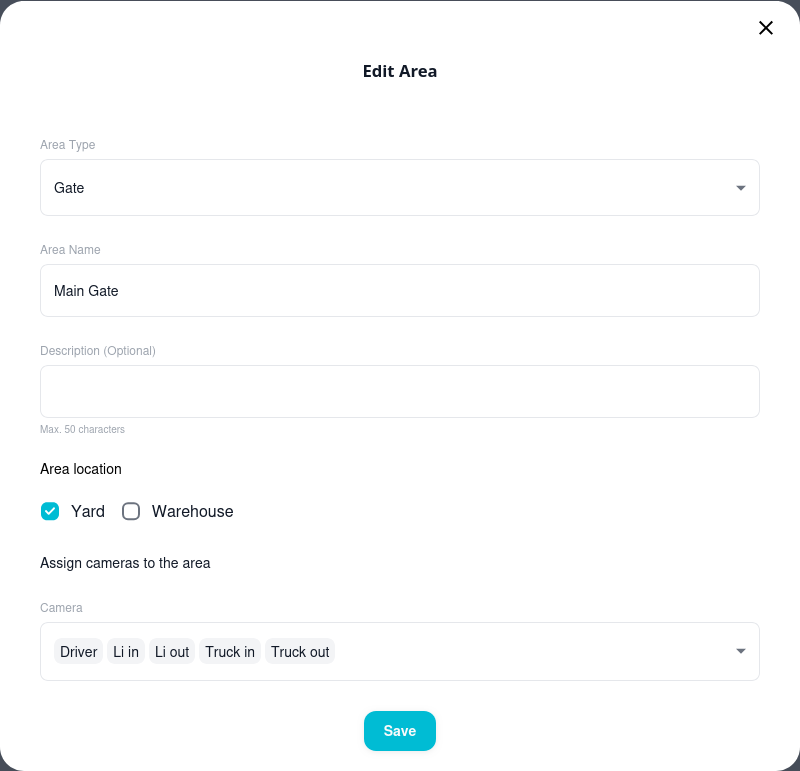
- The Edit Area dialog box will appear.
Edit Area Dialog
- Area Type: Dropdown to select the type of area (e.g., Gate, Dock, Other).
- Area Name: Field to input the name of the area.
- Description: (Optional) Field to provide additional details about the area.
- Area Location: Checkbox to select the area location (Yard, Warehouse).
- Assign Cameras: List of available cameras that can be assigned to the area.
After making the necessary changes, click Save to apply the updates.
5. Deleting an Area
To delete an area:
- Click the Trash icon on the top right of the area card you wish to delete.
- Confirm the deletion in the prompt that appears.
6. Submitting Configuration Changes
NOTE: This confirmation is only relevant when adding/editing zones. The button will be disabled until a zone has been created/edited/deleted. Please visit Editing Zones to learn more.