Quality Checks
Quality Checks are an optional but important part of the Shipment Inspection feature and provide immediate and valuable feedback about the quality of the products for the current shipment. Quality checks are organized by damage category, and within each category is a damage type.
Damage Categories and Types
I. Damaged Pallet
- Visible Cracks or Breaks - Cracks, fractures, or breaks along the visible edges or corners of the pallet that can compromise structural integrity.
- Visible Cracks or Breaks - Signs of warping or bending, such as visible unevenness or misalignment of the pallet's surface or load.
II. Damaged Pallet Wrappings
- Tears or Punctures - Rips, holes, or punctures in the pallet wrapping material.
- Inadequate or Missing Coverage - Areas where the wrapping is missing or inadequately covering the load, such as insufficient overlap, gaps, or areas where the wrapping has been improperly applied or has come off.
III. Pallet Load Stability
- Leaning Pallets - Pallets that are leaning or tilted, which could indicate instability.
- Overhang - Products that overhang the edge of the pallet, increasing the risk of damage.
IV. Damaged Product Packaging
- Crushed Corners - Packaging has been crushed or deformed.
- Tears or Rips - Tears, rips, or punctures in cardboard, plastic wrap, or other packaging materials.
- Water Damage - Signs of water exposure such as discoloration or warping.
- Opened Packaging - Packaging that has been tampered with or is no longer sealed.
V. Damaged Products
- Damaged Product - Products that are visibly broken or damaged inside their packaging.
- Product Leakage - Liquid or substance leakage from packaging.
VI. Expired Products
- Expired Products - Products that have passed their expiration date.
- Approaching Expiration - Products that are nearing their expiration date.
NOTE: Expiration date quality checks will only work if the dates are clearly visible in the images.
Enabling Quality Checks
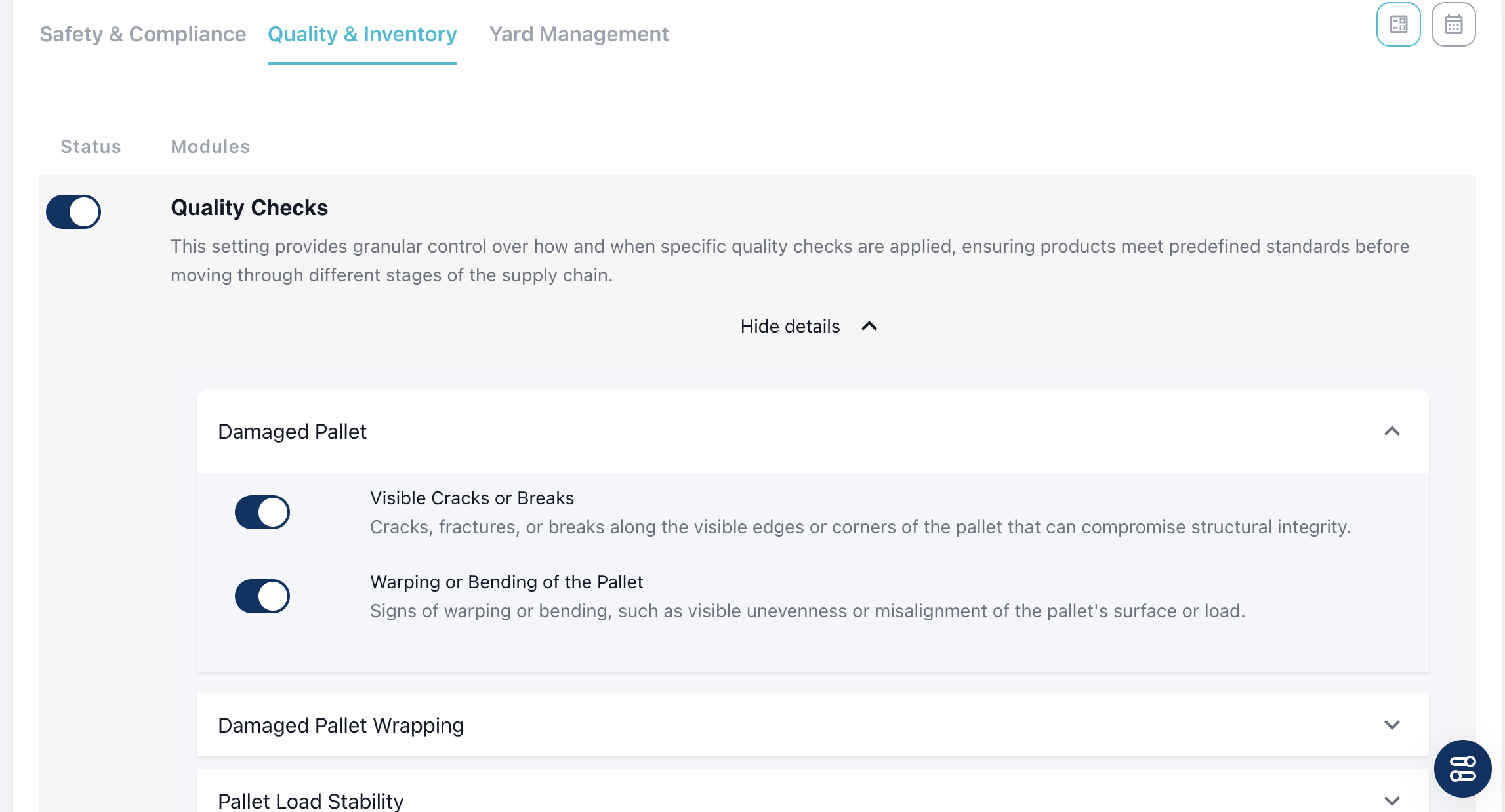
To activate quality checks as part of shipment inspection, you must enable the "Quality Checks" module on the modules page under General Settings, within the "Quality and Inventory" tab. You can then customize which specific damage types you'd like to detect (all are on by default). Click on "More details" to view the provided damage categories and each associated damage type. Click the switch on the left to enable or disable the sub-modules.
Viewing Quality Checks Results
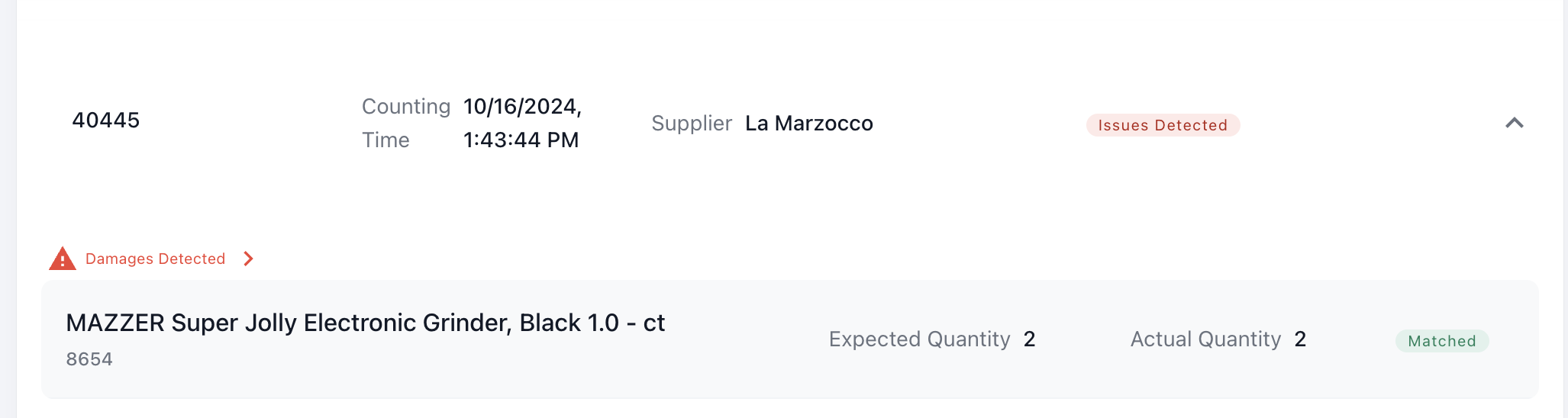
During the shipment inspection process on the final review page, which shows the AI counted products to be reviewed before submitting, you will also be notified of any damages that were detected (if enabled). If damages are detected, you will see a red warning symbol with the text "Damages Detected" in the top left corner. Otherwise, "No Damages Detected" will appear in green.
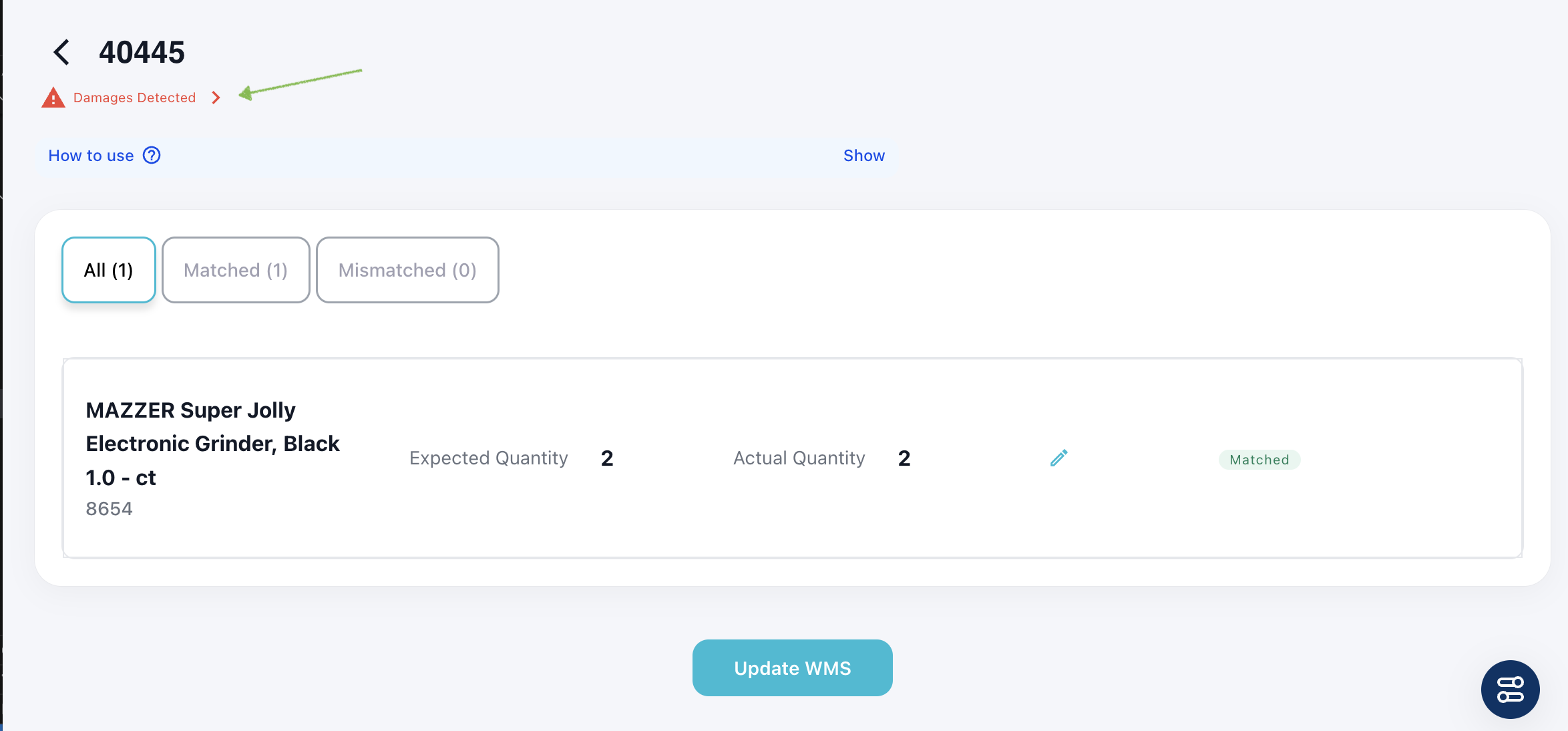
To review the damages in detail, click the "Damages Detected" link.
Reviewing Damaged Products and Pallets
On this page, you can review pallets and products marked as damaged (or undamaged) in greater detail.
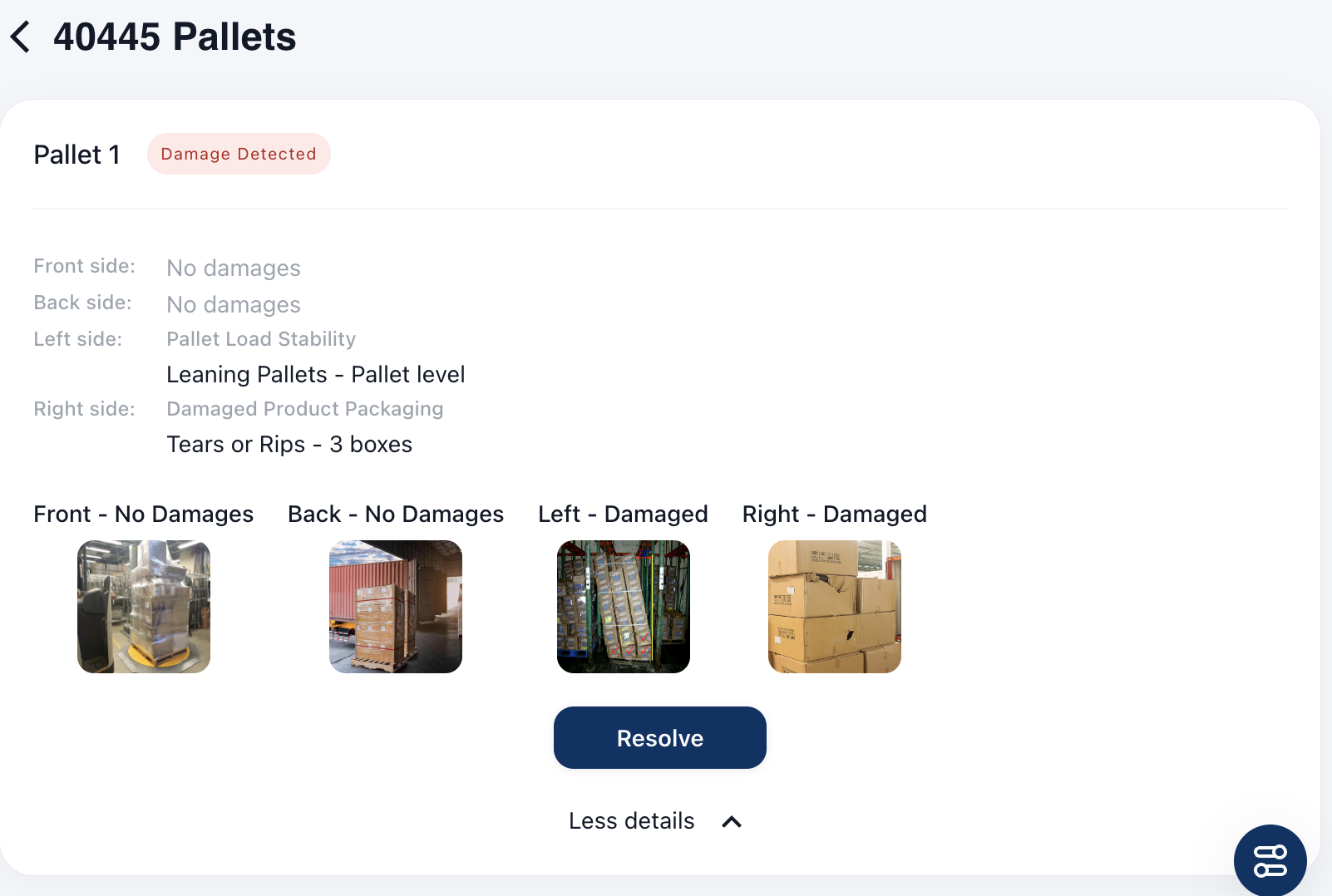
The Units page displays all units within a shipment, highlighting any associated damages along with images of each pallet. For every unit side, you'll find information for each damage (if applicable), along with the number of boxes affected by the damage (for product-related damages).
If the operator has addressed the damaged products according to the organization's damage policy, they can click "Resolved" to confirm that the damages have been acknowledged and handled appropriately.
NOTE: Once the shipment inspection is completed, this page remains accessible from the shipment inspection home page for the respective shipment. This can be particularly useful in the event of damage disputes, as the records of pallet images will be available here for review.