Quality Stations
Quality Stations are dedicated inspection points configured throughout your facility to perform automated quality checks and product counting during the shipment inspection process. Each quality station is associated with specific cameras and zones, and can be customized based on the type of inspection workflow and equipment available at that location.
What is a Quality Station?
A quality station represents a physical location in your warehouse where shipment inspection takes place. The configuration of each station depends on:
- The type of equipment at that location (turntable, conveyor, mobile device, etc.)
- The types of products being inspected (pallets, parcels, wrapped pallets, etc.)
- The inspection requirements (quality checks, product counting, or photo documentation only)
- The camera setup and zones for image capture
Quality stations enable the Arvist platform to adapt to your existing warehouse infrastructure while providing consistent, automated inspection capabilities.
Accessing Quality Station Setup
To access quality station configuration:
- Navigate to Quality & Inventory in the sidebar
- Click on Quality Settings to expand the dropdown
- Select QC Station Setup from the menu
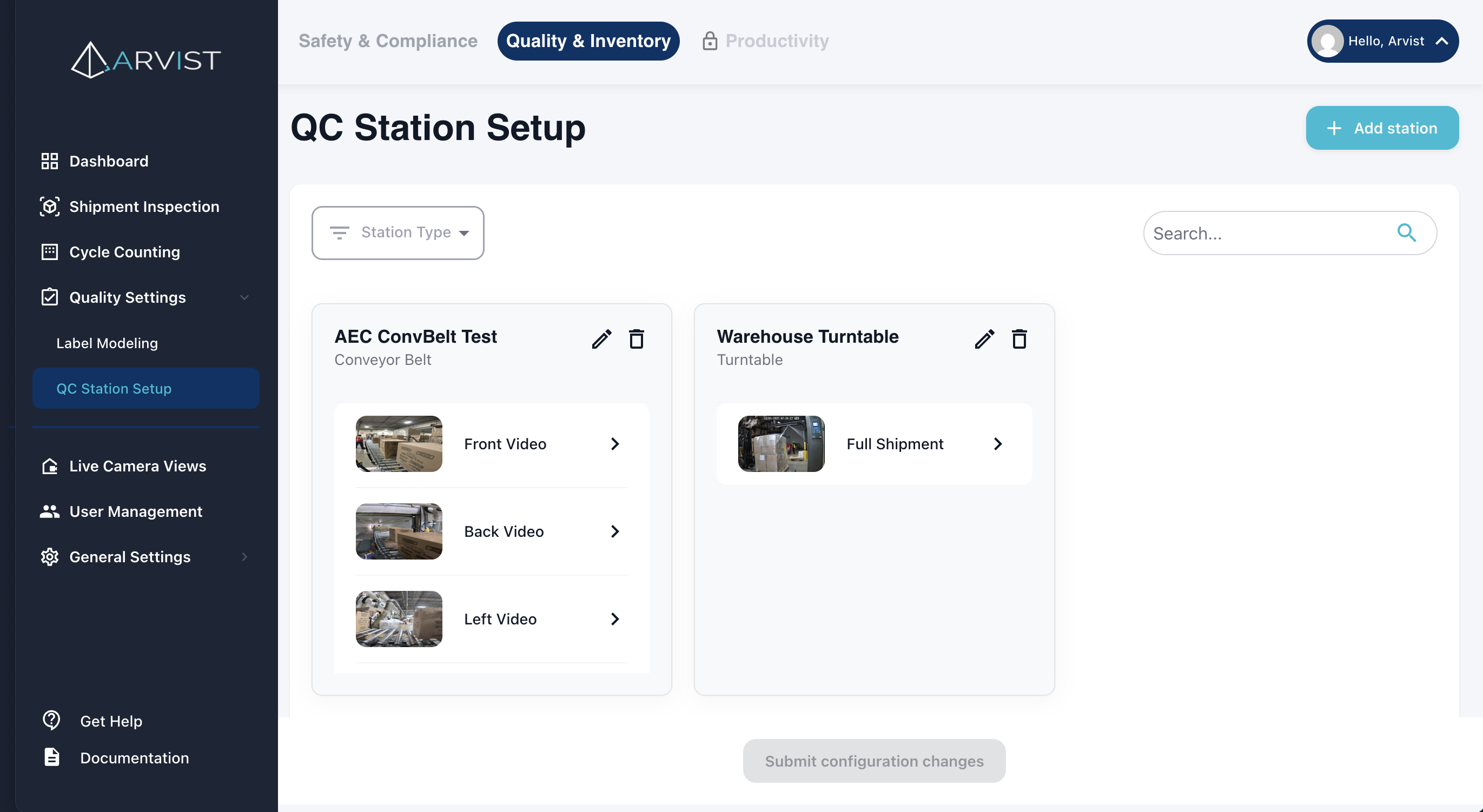
- You'll see a list of all configured quality stations
From this page, you can:
- View existing quality stations
- Create new quality stations
- Edit existing station configurations
- Delete stations that are no longer needed
- Submit zone configuration changes
Creating a Quality Station
Creating a quality station involves a multi-step process that configures the station type, inspection settings, camera/zone assignments, and notification preferences.
Step 1: Quality Station Type & Product Configuration
Station Type
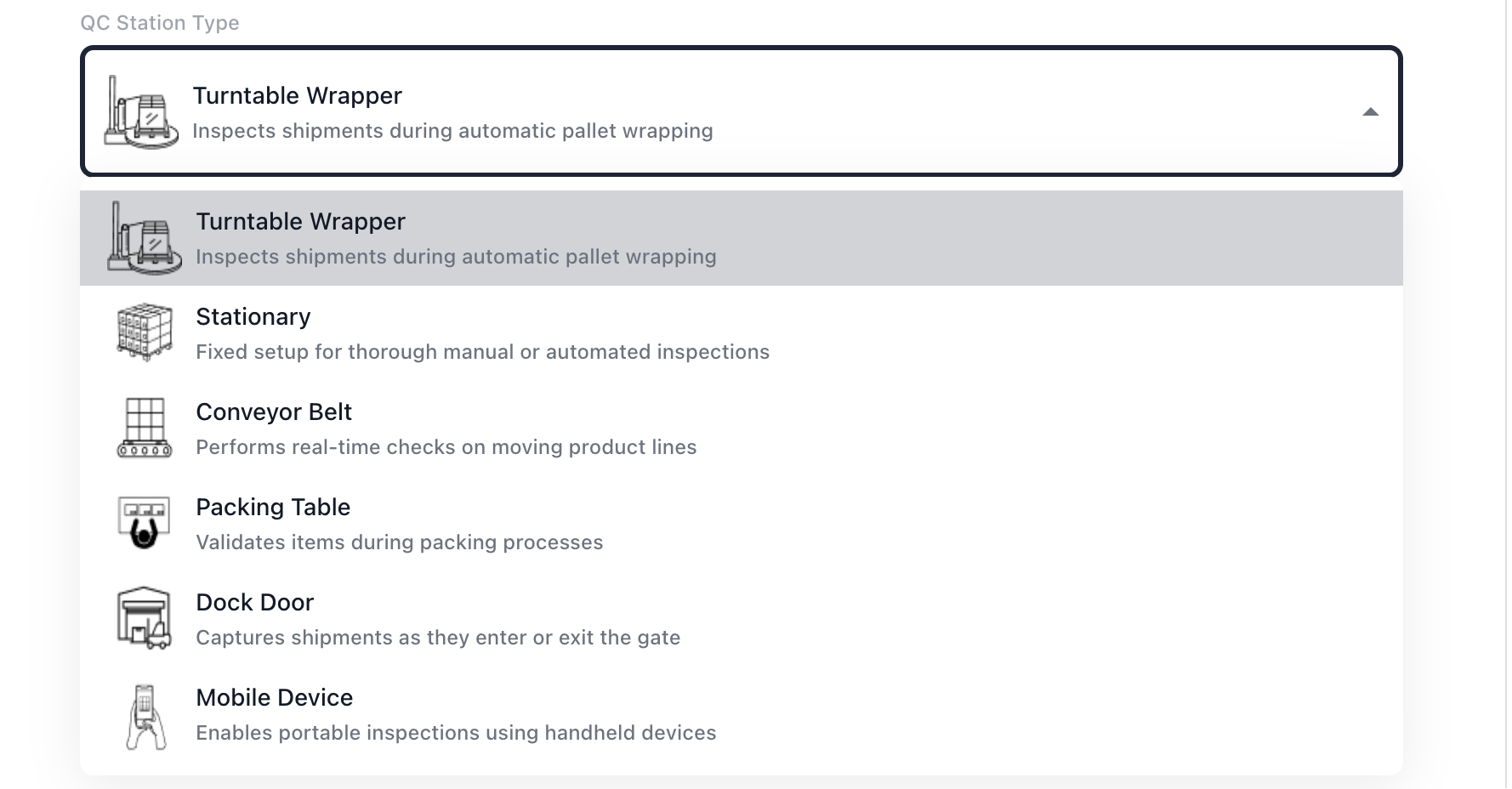
Choose the quality station type that matches your physical setup:
Turntable Wrapper
- Inspects shipments during automatic pallet wrapping
- Unit is automatically detected when loaded onto the turntable
- Images are captured as the unit rotates
- Suitable for: Full-Pallet Load, Single-Side Facing Pallet, Dual-Side Facing Pallet
Stationary
- Fixed setup for thorough manual or automated inspections
- User manually triggers image capture from mounted cameras
- Provides complete control over inspection timing
- Suitable for: Full-Pallet Load, Single-Side Facing Pallet, Dual-Side Facing Pallet, Single Product/Parcel
Conveyor Belt
- Performs real-time checks on moving product lines
- Automatically captures images as units enter camera view
- Ideal for high-throughput environments
- Suitable for: Full-Pallet Load, Single-Side Facing Pallet, Dual-Side Facing Pallet, Single Product/Parcel
Packing Table
- Validates items during packing processes
- Overhead cameras capture top-facing products
- Optimized for flat-laid items with upward-facing labels
- Suitable for: Top-Facing Items only
Dock Door
- Captures shipments as they enter or exit the facility
- Monitors wrapped pallets passing through dock doors
- Suitable for: Wrapped Pallet only
Mobile Device
- Enables portable inspections using handheld devices (tablets, smartphones)
- Workers manually capture images from specified sides
- Most flexible option, works in any location
- Suitable for: All product types except Wrapped Pallet
Station Name
Enter a unique name for the quality station:
- Must not contain special characters (
~!@#$%^&*+=[]{}|\:;"'<>,.?/) - Should clearly identify the location (e.g., "Receiving Dock 1", "Packing Line A")
Station Description (Optional)
Provide additional context about the station's purpose or location.
Product Configuration
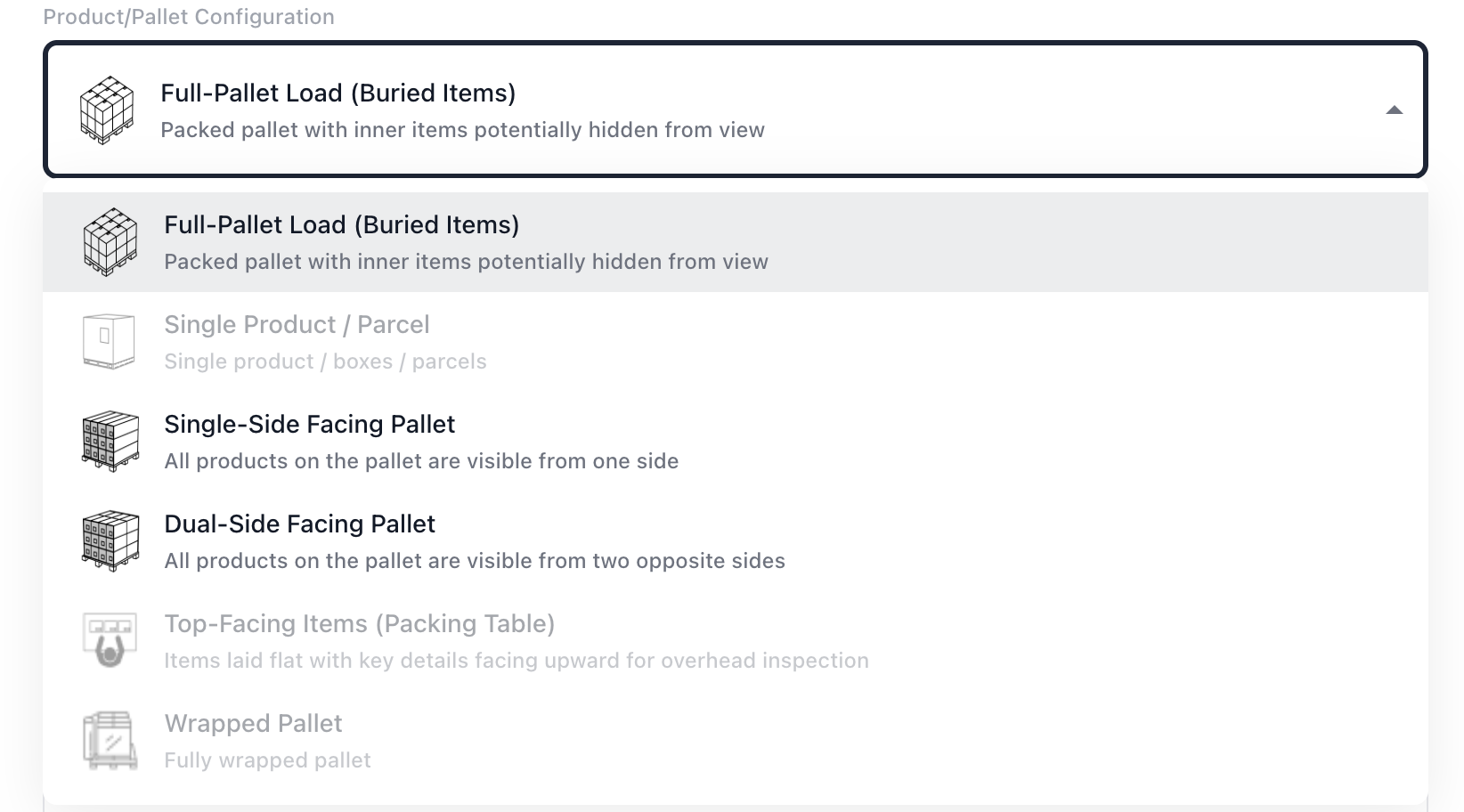
Select the type of product that will be inspected at this station:
Full-Pallet Load (Buried Items)
- Packed pallet with inner items potentially hidden from view
- Requires images from multiple sides for complete inspection
Single Product / Parcel
- Individual boxes, parcels, or single products
- Quick inspection for smaller items
Single-Side Facing Pallet
- All products on the pallet are visible from one side
- Only requires one primary camera angle
Dual-Side Facing Pallet
- All products on the pallet are visible from two opposite sides (front/back or left/right)
- Requires at least two cameras positioned on opposite sides
Top-Facing Items (Packing Table)
- Items laid flat with key details facing upward for overhead inspection
- Only available for Packing Table station type
Wrapped Pallet
- Fully wrapped pallet with shrink wrap obscuring individual products
- Only available for Dock Door station type
- Requires front, left, and right side images
NOTE: Product options are automatically filtered based on the selected station type. Not all products are compatible with all station types.
Inspection Type Options
Select which types of inspections should be performed at this station. All inspection types are optional - you can select one, both, or neither:
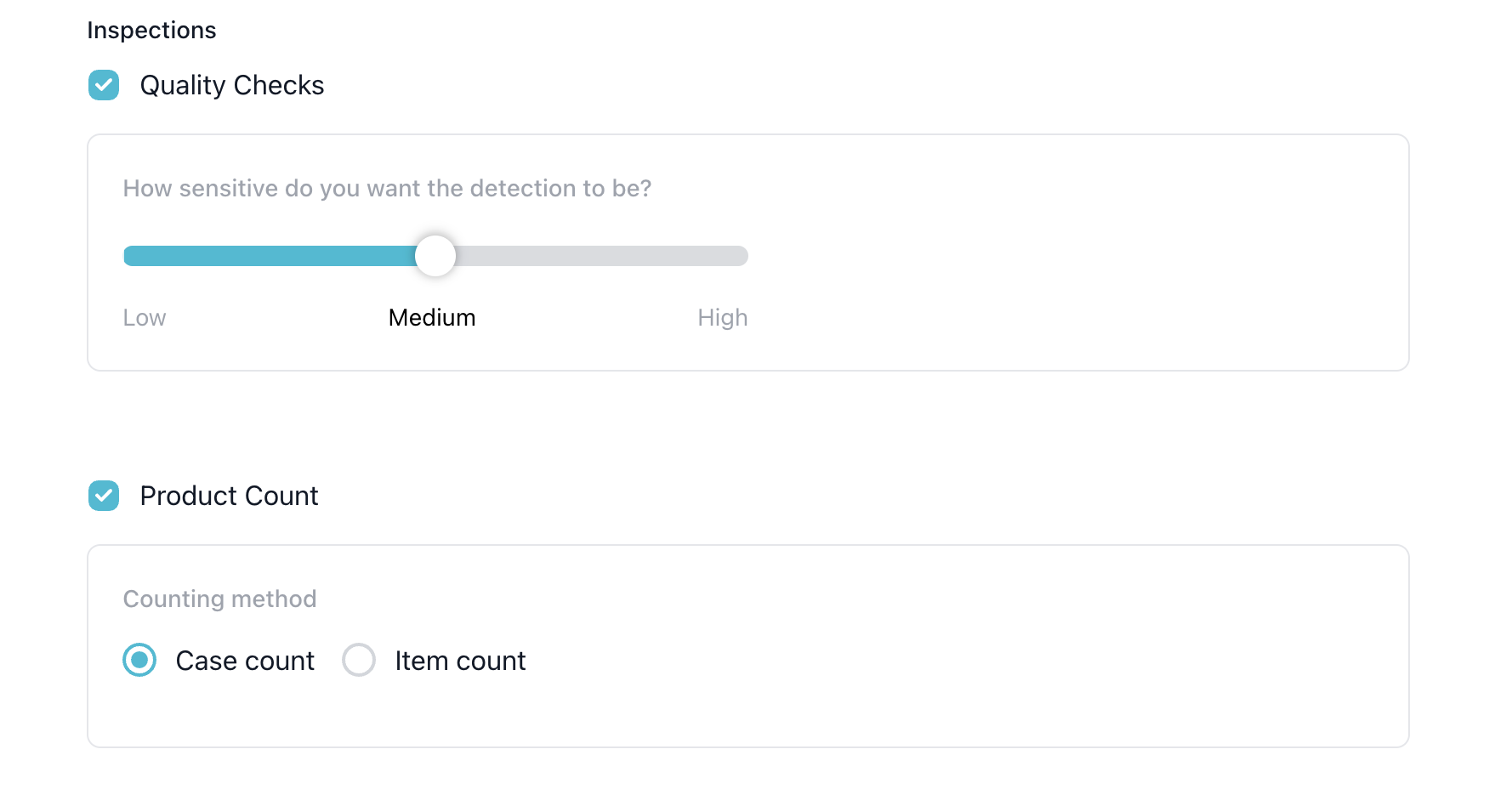
Quality Checks
- Enables automated damage detection on units
- Detects issues like crushed boxes, tears, water damage, etc.
- When enabled, you'll also need to enable the Quality Checks module under Modules for granular control over which specific damage types to detect
- See Quality Checks for more details on damage categories and types
Quality Check Severity (appears when Quality Checks is enabled)
- Set the severity threshold for damage notifications: Low (0), Medium (50), or High (100)
- Affects when damage notifications are triggered
Product Count
- Enables product identification and counting
- Not available for Dock Door station type
Product Count Settings (appears when Product Count is enabled)
- Counting Method: Choose how products should be counted:
- Case Count: Counts entire cases/boxes
- Item Count: Counts individual items within cases
- When Item Count is selected, the option From Case Labels appears and is automatically selected
- This means item quantities will be read directly from product case labels
Load Verification
-
Enables pallet identification and load verification
-
Only available for "Wrapped Pallet" (in order to properly identify pallet label data)
-
Select Dock Door
- Choose the dock door where the pallet will be loaded or unloaded
- Can either select existing dock doors or create a new one by entering a new value
Photo Documentation Only
- If no inspection types are selected, the quality station will capture images for photo documentation purposes only
- No AI processing or inferencing will be performed
- Useful for record-keeping or manual review workflows
IMPORTANT: When Quality Checks is enabled in a quality station, you must also enable the Quality Checks module in the Modules section. The module configuration provides granular control over which specific damage types (crushed boxes, tears, water damage, etc.) should be detected.
Advanced Configurations
Click to expand advanced settings for additional customization:
Single Unit Mode
- Enable if inspecting single units rather than multiple units per shipment
- Affects workflow and counting behavior
Automate Shipment Identification and Inspection
- Available only for Wrapped Pallet product configuration (not available for Mobile Device stations)
- Enables continuous camera monitoring that automatically detects wrapped pallets, reads order numbers from labels, and initiates inspections without operator input
- Compatible with Quality Checks, Load Verification, and Photo Documentation Only (Product Count not supported)
- When enabled, the system automatically creates/matches shipments and redirects users to the inspection summary page (when the configured quality station is selected in the Inspection Settings)
- See Automated Inspection for detailed information on how this feature works and configuration requirements
Step 2: Camera & Zone Configuration
The second step varies based on your station type:
For Mobile Device Stations: Setup Photography Sides
Select which sides/angles the mobile device user should capture images from:
- Front: Front-facing view of the unit
- Right: Right side view
- Back: Back-facing view
- Left: Left side view
- Top: Top-down view
The number of required sides depends on your product configuration:
- Dual-Side Facing Pallet: Minimum 2 cameras required
- Wrapped Pallet: Front, Left, and Right sides required
- Other Products: Minimum 1 camera required
For Fixed Camera Stations: Setup Cameras
For non-mobile stations (Turntable, Stationary, Conveyor Belt, Packing Table, Dock Door):
-
Select Required Cameras: Choose which cameras from your facility will be used for the primary inspection workflow
- Cameras must already be configured in the system under Camera Views
- The number of required cameras depends on your quality station type and product configuration
-
Assign Zones: For each camera, create zones that define the inspection area
- Click Mark Zone to draw a polygon zone on the camera view
- Zones should encompass the area where units will be positioned during inspection
-
Assign Sides: For each camera zone, specify which side of the unit it captures
- Options: Front, Right, Back, Left, Top
- For Dual-Side Facing Pallet: Must have two opposite sides (front/back or left/right)
- For Wrapped Pallet: Must have Front, Left, and Right sides assigned
-
Additional Cameras (Optional): Add supplementary cameras that are not required for the counting workflow
- These cameras can be used for damage detection or photo documentation
- Not required for product counting
- Useful for capturing additional angles or perspectives
Zone Drawing
Similar to Area Configuration, you'll draw zones on camera views:
- Click Mark Zone on a camera
- Click points on the camera image to create a polygon
- Complete the polygon by clicking near the starting point
- Assign the appropriate side to the zone
- Save the zone configuration
TIP: Ensure zones are large enough to capture the entire unit but small enough to avoid including unwanted areas or adjacent workspaces.
Step 3: Results Display
Configure how inspection results should be displayed and communicated to users.
Display Options
On Screen (automatically selected, cannot be disabled)
- Inspection results are displayed via popups during the shipment inspection process
- Shows damage detection popups when damages are found (if Quality Checks enabled)
- Shows unidentified product popups when product mismatches occur (if Product Count enabled)
- This option is always active to ensure users see critical issues during inspection
Text/Email Notification (optional)
- When enabled, allows you to select users who should receive notifications about inspection results
- Opens the notification configuration component for user selection
Notification Configuration
When Text/Email Notification is enabled, you can configure which users receive alerts:
Damage Notifications (if Quality Checks enabled)
- Select users who should receive notifications when damages are detected
- Notifications are sent when quality checks identify damage on a unit
Count Mismatch Notifications (if Product Count enabled)
- Select users who should receive notifications when product counts don't match expected quantities
- Notifications are sent when detected counts differ from WMS/PO data
For each user, you can enable multiple notification methods:
- Email: Send notification via email
- SMS: Send text message (US users only)
- WhatsApp: Send via WhatsApp (if configured)
NOTE: Only users with Quality Alerts permission will appear in the notification selection list. Users must have this permission assigned through their role in User Management to receive quality-related notifications.
Configuration Summary
Review all configured settings before submitting:
- Station type and name
- Product configuration
- Enabled inspection types (if any)
- Advanced configurations
- Camera and zone assignments
- Notification recipients (if applicable)
If everything looks correct, click Submit to create the quality station.
Managing Quality Stations
Editing a Quality Station
To modify an existing quality station:
- Navigate to the QC Station Setup page
- Click the Edit icon (pencil) next to the station you want to modify
- Make your changes through the same multi-step process
- Click Submit to save changes
IMPORTANT: Changes to camera zones require submission to the NVR configuration. You'll be prompted to submit these changes, which may require a brief system restart.
Deleting a Quality Station
To remove a quality station:
- Navigate to the QC Station Setup page
- Click the Delete icon (trash) next to the station
- Confirm the deletion
WARNING: Deleting a quality station will remove it from all associated inspection workflows. Any in-progress inspections using this station should be completed before deletion.
Submitting Zone Changes
When you modify camera zones for quality stations, these changes need to be applied to the NVR (Network Video Recorder) configuration:
- After making zone changes, you'll see a Submit Changes button
- Click Submit Changes to apply the configuration
- The system will update the NVR with the new zone coordinates
- A modal will indicate when the update is complete
- If required, you may need to restart the NVR service (you'll be prompted)
This process ensures that zone-based detections work correctly with your camera feeds.
Quality Station Types and Product Compatibility
Not all product types are compatible with all station types. Here's a quick reference:
| Station Type | Compatible Products |
|---|---|
| Turntable | Full-Pallet Load, Single-Side Pallet, Dual-Side Pallet |
| Stationary | Full-Pallet Load, Single-Side Pallet, Dual-Side Pallet, Single Product |
| Conveyor Belt | Full-Pallet Load, Single-Side Pallet, Dual-Side Pallet, Single Product |
| Packing Table | Top-Facing Items only |
| Dock Door | Wrapped Pallet only |
| Mobile Device | All except Wrapped Pallet |
Best Practices
Station Naming
- Use clear, location-based names that make it easy to identify where the station is physically located
- Include line numbers or dock numbers if you have multiple similar stations
- Avoid special characters that might cause system issues
Inspection Type Selection
- Enable Quality Checks for damage-sensitive products or workflows requiring damage documentation
- Enable Product Count when accurate inventory tracking is critical
- Use both for comprehensive inspection coverage
- Use neither for simple photo documentation workflows
Camera Setup
- Position cameras to capture clear, well-lit images of products
- Ensure zones don't overlap with adjacent workspaces
- Test camera angles before finalizing configuration
- Use additional cameras for supplementary views without affecting the counting workflow
Zone Configuration
- Make zones large enough to accommodate slight variations in unit placement
- Avoid including unnecessary background elements in zones
- For dual-side pallets, ensure opposite sides are properly configured
Notification Setup
- Only notify users who need to take action on detected issues
- Use appropriate notification methods based on urgency and user preferences
- Test notifications after setup to ensure they're working correctly