Inspection Configurations
An Inspection Configuration defines what gets inspected and how — the product/pallet type, which inspection types run (Quality Checks, Product Count, Load Verification), and the automation/triggering behavior. A configuration is created once and can then be assigned to any number of Quality Stations of a matching station type, so you no longer have to re-enter the same inspection settings for every station that runs the same workflow.
What is an Inspection Configuration?
An inspection configuration groups together:
- The station type it's compatible with (Turntable, Stationary, Conveyor Belt, Packing Table, Dock Door, or Mobile Device)
- The product/pallet configuration being inspected
- Which inspection types are enabled (Quality Checks, Product Count, Load Verification) and their settings
- Product data capture fields and identification methods
- Triggering/automation behavior (inspection mode, grouping logic, auto-complete, etc.)
- The label models used to identify units
A configuration does not include camera/zone assignments or notification recipients — those stay on the individual Quality Station, since they depend on the physical hardware at each location.
Because a configuration is reusable, you can define an inspection workflow once (for example, "Wrapped Pallet — Load Verification") and assign it to every dock door station that should behave the same way, instead of configuring each station individually.
Accessing Inspection Configurations
To access inspection configuration setup:
- Navigate to Quality & Inventory in the sidebar
- Click on Quality Settings to expand the dropdown
- Select Inspection Configuration from the menu
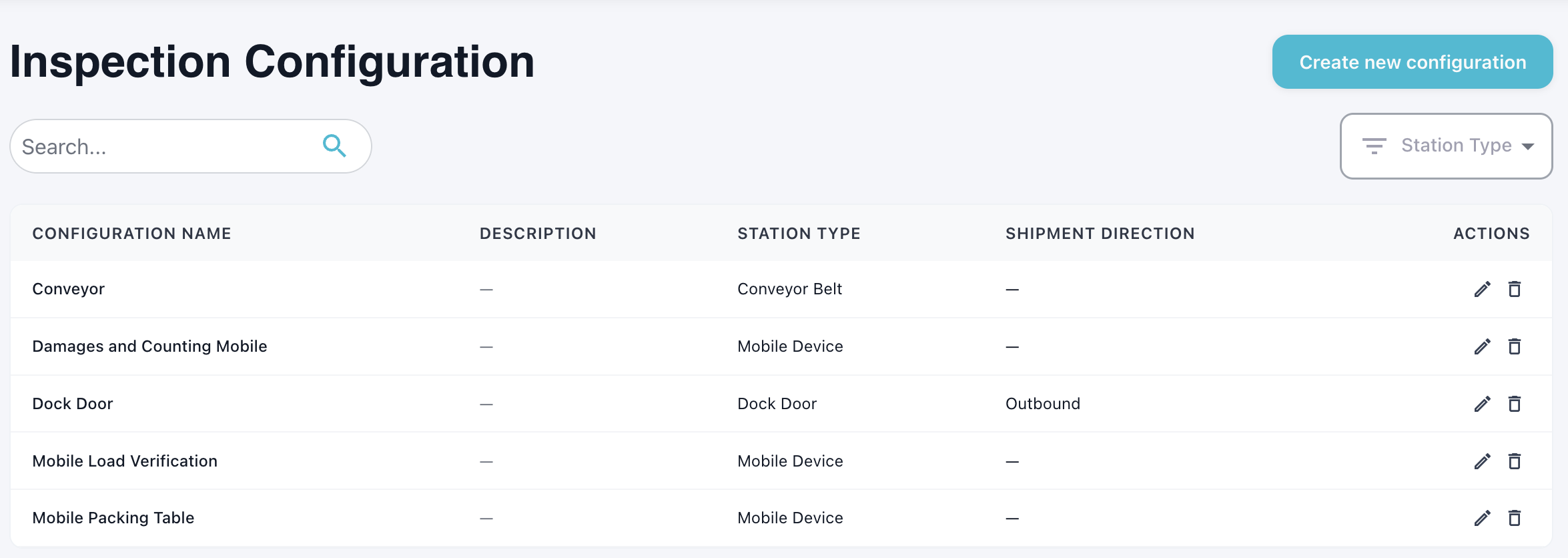
- You'll see a list of all configured inspection configurations
Creating an Inspection Configuration
Creating an inspection configuration is a 4-step process.
Step 1: Station & Identity
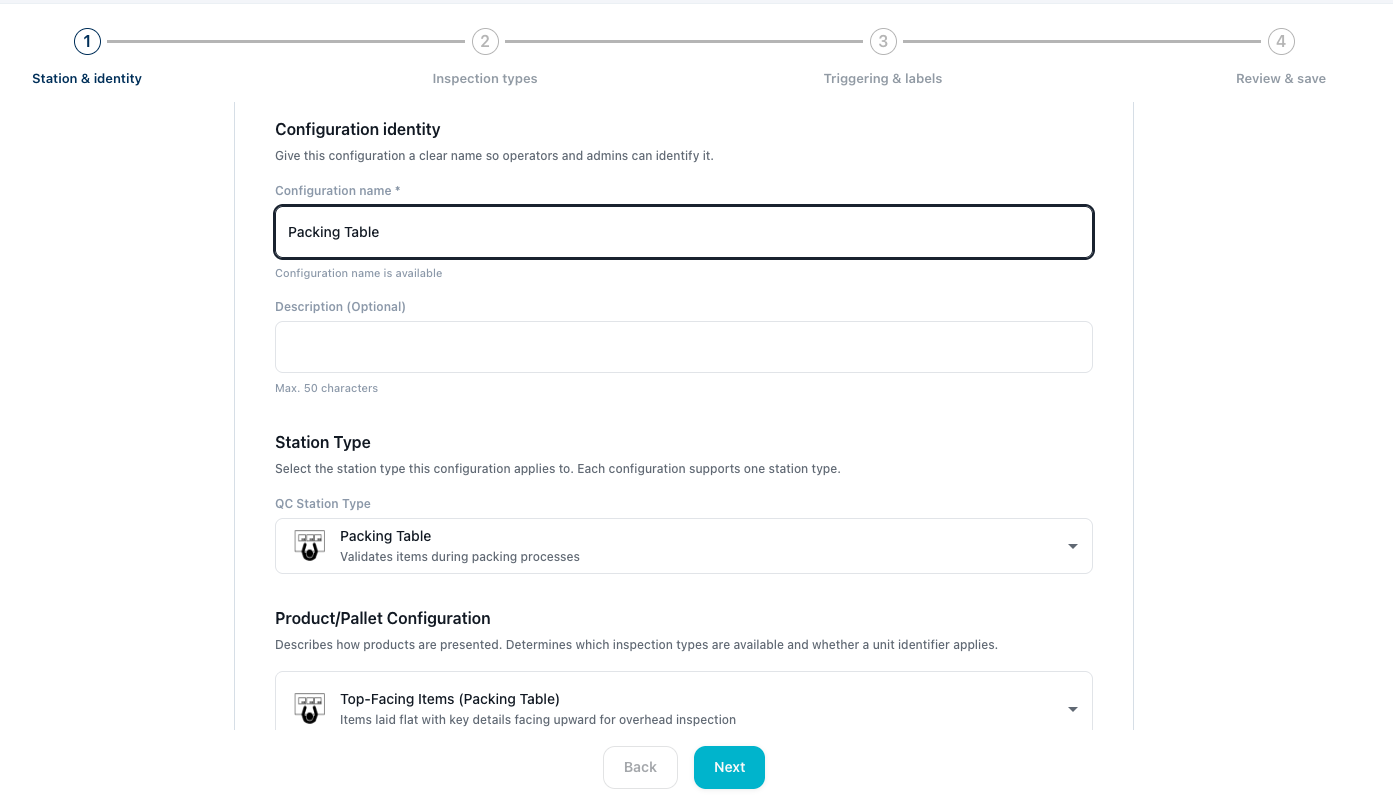
Configuration Name
- Enter a unique name for the configuration
- Name availability is checked live as you type (shows "Configuration name is available" or "Configuration name already exists")
- Since one configuration may be reused across many stations, prefer a descriptive name over a station-specific one (e.g., "Wrapped Pallet — Load Verification" rather than "Dock 3")
Description (optional)
Provide additional context about what the configuration is for.
Station Type
Choose the station type this configuration is compatible with:
Turntable Wrapper
- Inspects shipments during automatic pallet wrapping
- Suitable for: Full-Pallet Load, Single-Side Facing Pallet, Dual-Side Facing Pallet
Stationary
- Fixed setup for thorough manual or automated inspections
- Suitable for: Full-Pallet Load, Single-Side Facing Pallet, Dual-Side Facing Pallet, Single Product/Parcel
Conveyor Belt
- Performs real-time checks on moving product lines
- Suitable for: Full-Pallet Load, Single-Side Facing Pallet, Dual-Side Facing Pallet, Single Product/Parcel
Packing Table
- Validates items during packing processes via overhead cameras
- Suitable for: Top-Facing Items only
Dock Door
- Captures shipments as they enter or exit the facility
- Suitable for: Wrapped Pallet only
Mobile Device
- Enables portable inspections using handheld devices
- Suitable for: All product types except Wrapped Pallet
NOTE: Once a configuration has been assigned to a station, its station type is locked. Unassign it from any stations before changing the station type.
Shipment Direction (Dock Door type only)
Choose whether this configuration applies to inbound or outbound shipments.
Product / Pallet Configuration
Select the type of product this configuration is for. Options are automatically filtered based on the selected station type — not all products are compatible with all station types.
Full-Pallet Load (Buried Items)
- Packed pallet with inner items potentially hidden from view
- Requires images from multiple sides for complete inspection
Single Product / Parcel
- Individual boxes, parcels, or single products
Single-Side Facing Pallet
- All products on the pallet are visible from one side
Dual-Side Facing Pallet
- All products on the pallet are visible from two opposite sides (front/back or left/right)
Top-Facing Items (Packing Table)
- Items laid flat with key details facing upward for overhead inspection
- Only available for Packing Table station type
Wrapped Pallet
- Fully wrapped pallet with shrink wrap obscuring individual products
- Only available for Dock Door station type
Step 2: Inspection Types
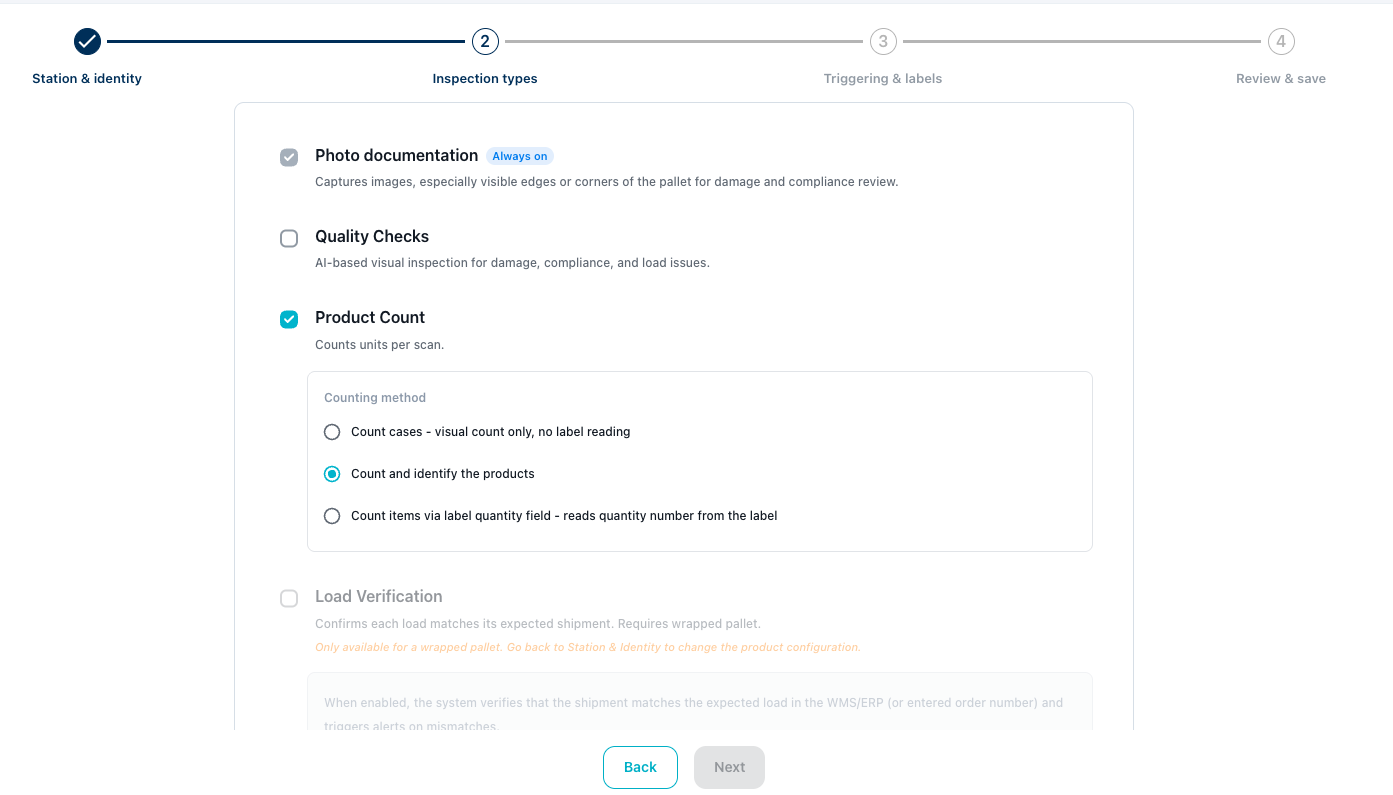
Photo Documentation
- Always enabled and cannot be turned off
- Captures images for record-keeping even if no other inspection type is selected
Quality Checks
- Enables automated damage detection on units
- Mode: Default or Customized — customized mode opens a modal to set the severity threshold and choose which specific damage types to detect
- See Quality Checks for more detail on damage categories and types
Product Count
- Enables product identification and counting
- Counting method: Count Cases, Count & Identify, or Count Items via Quantity
- Some counting methods are unavailable for Wrapped Pallet configurations or standalone (non-WMS) integrations
Load Verification
- Enables pallet identification and load verification
- Only available for the Wrapped Pallet product configuration
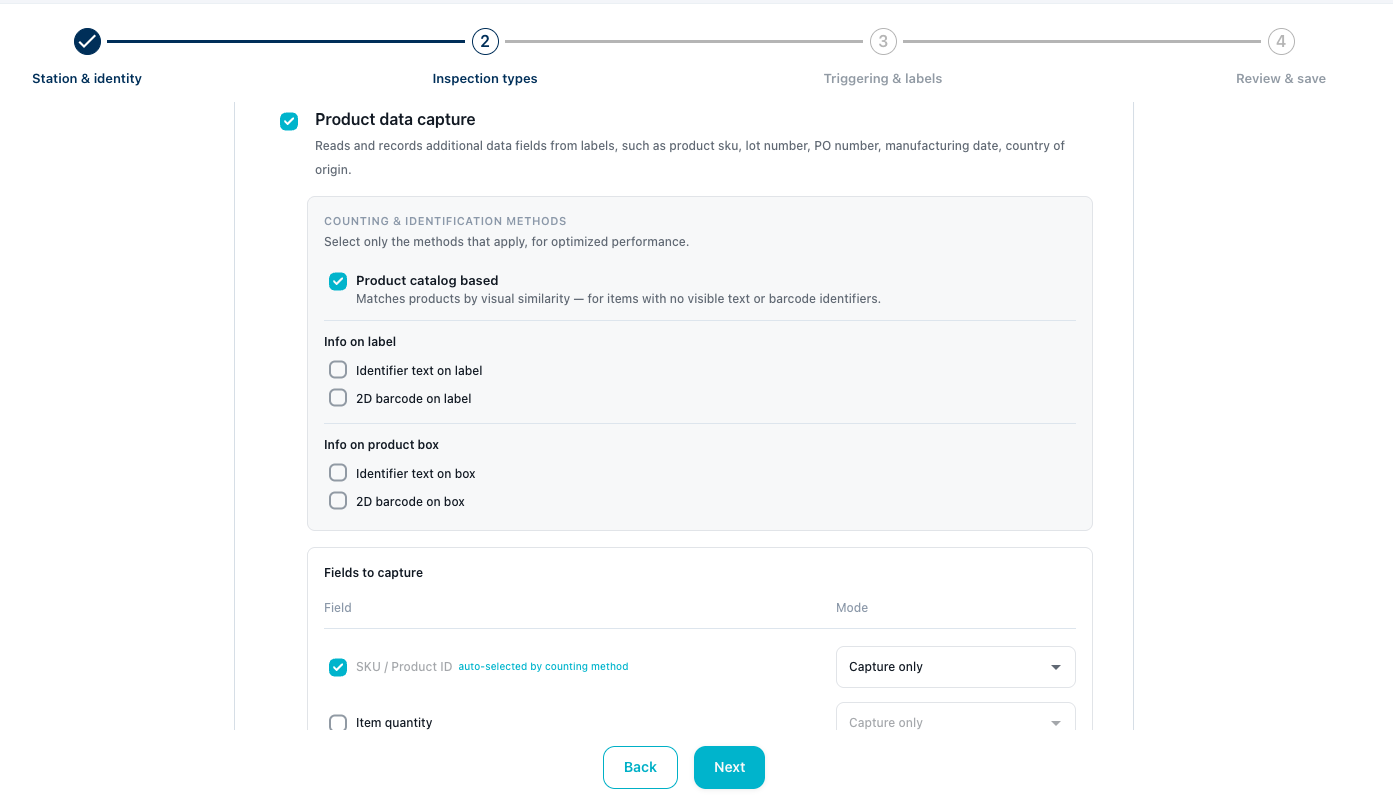
Product Data Capture
- Choose which fields to capture: SKU, Item Quantity, Lot Number, PO Number, Manufacturing Date, Country of Origin
- Choose identification methods: Product Catalog, Label Text, Label Barcode, Box Text, Box Barcode
- Product Catalog identification requires SKU capture to be enabled
Step 3: Triggering & Labels
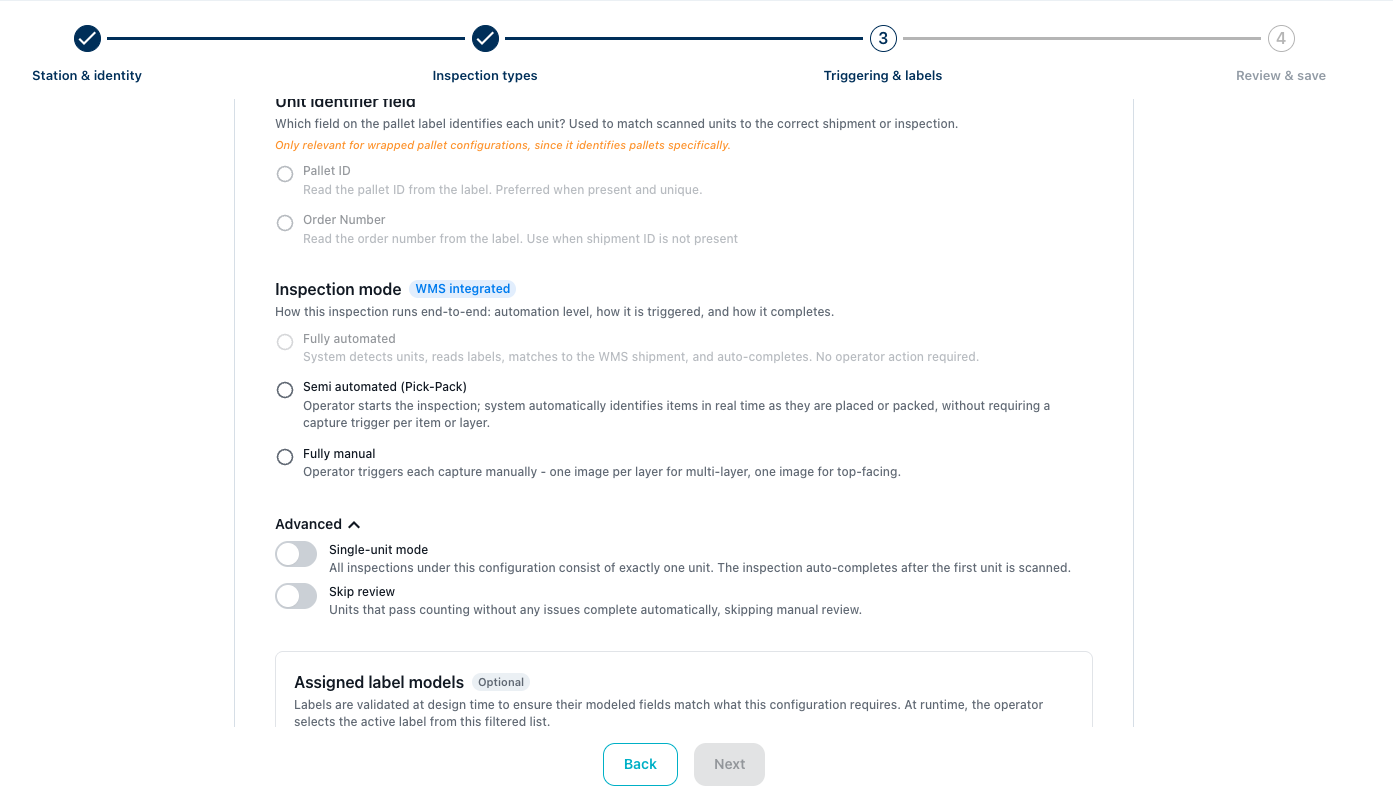
Inspection Mode
- Fully Manual, Semi-Automated, or Fully Automated
- Availability depends on station type — for example, Mobile Device stations only support Fully Manual, and Conveyor Belt stations force Semi-Automated
Grouping Logic & Auto-Complete (Fully Automated mode only)
- Group units by pallet ID or order number
- Enable auto-complete to close out inspections automatically once grouping criteria are met
Unit Identifier Field
- Identify units by Order Number or Pallet ID
- Required when the product configuration is Wrapped Pallet and Load Verification is enabled
Ad Hoc Unit Source
- Choose whether ad hoc units are identified via a Label or entered by the Operator
- If Operator, choose whether the operator enters an Order Number or Shipment ID
Single-Unit Mode
- Enable if inspecting a single unit per shipment rather than multiple units
Capture Load Image in Container (Dock Door only)
- Enable to capture an image of the load while still inside the container
Skip Review (Product Count only)
- Enable to skip the manual review step after counting
Advanced: Label Models
- Expand the Advanced section to search for and select the shipment label models used to identify units under this configuration
Step 4: Review & Save
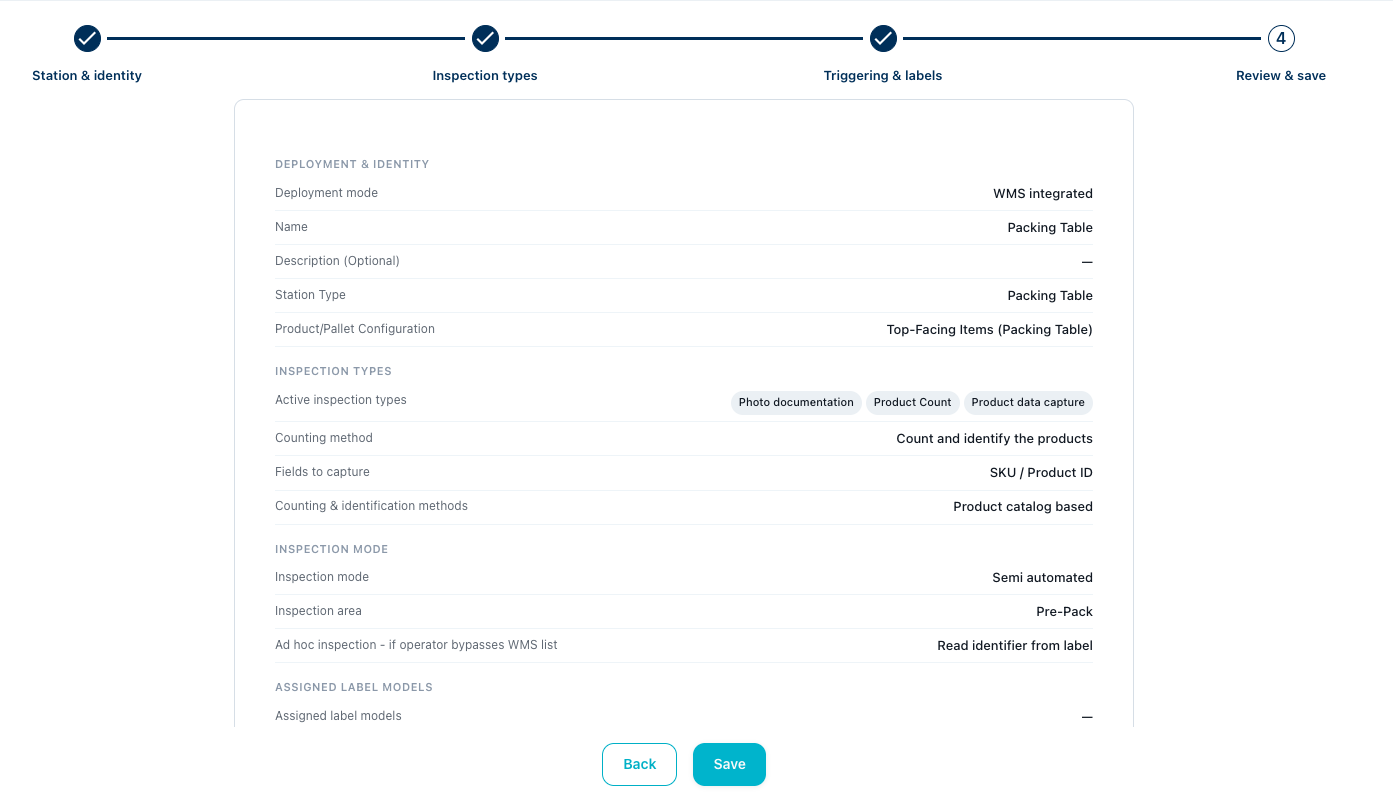
Review a read-only summary of everything configured in the previous steps. Click Save to create the configuration and return to the Inspection Configuration list.
Assigning a Configuration to a Station
Inspection configurations are not assigned during configuration creation — assignment happens from the Quality Station list page. See Assigning an Inspection Configuration for details.
Managing Inspection Configurations
From the Inspection Configuration list, you can edit or delete existing configurations.
- Editing walks you back through the same 4-step process described above.
- Deleting removes the configuration. Any stations it was assigned to will need a replacement configuration assigned to them.
Best Practices
Configuration Reuse
- Create one configuration per distinct inspection workflow, not one per station — assign the same configuration to every station that should behave identically
- This keeps behavior consistent across stations and means a workflow change only needs to be made in one place
Naming
- Name configurations by what they inspect and how, not by the station they were first built for (e.g., "Case Count — Conveyor" rather than "Line 2")
Inspection Type Selection
- Enable Quality Checks for damage-sensitive products or workflows requiring damage documentation
- Enable Product Count when accurate inventory tracking is critical
- Enable Load Verification only for Wrapped Pallet dock door workflows
- Use Photo Documentation alone (no other inspection types) for simple record-keeping workflows
Triggering & Automation
- Match the inspection mode to how units actually move through the station type — don't force Fully Automated on a workflow that needs manual review
- Use Single-Unit Mode only for workflows that truly process one unit per shipment