Claims Queue
The Claims Queue is the main landing page of the Claims Management module. It gives your team an at-a-glance view of all active and resolved claims, their current status, deadlines, and the agent's progress on each one.
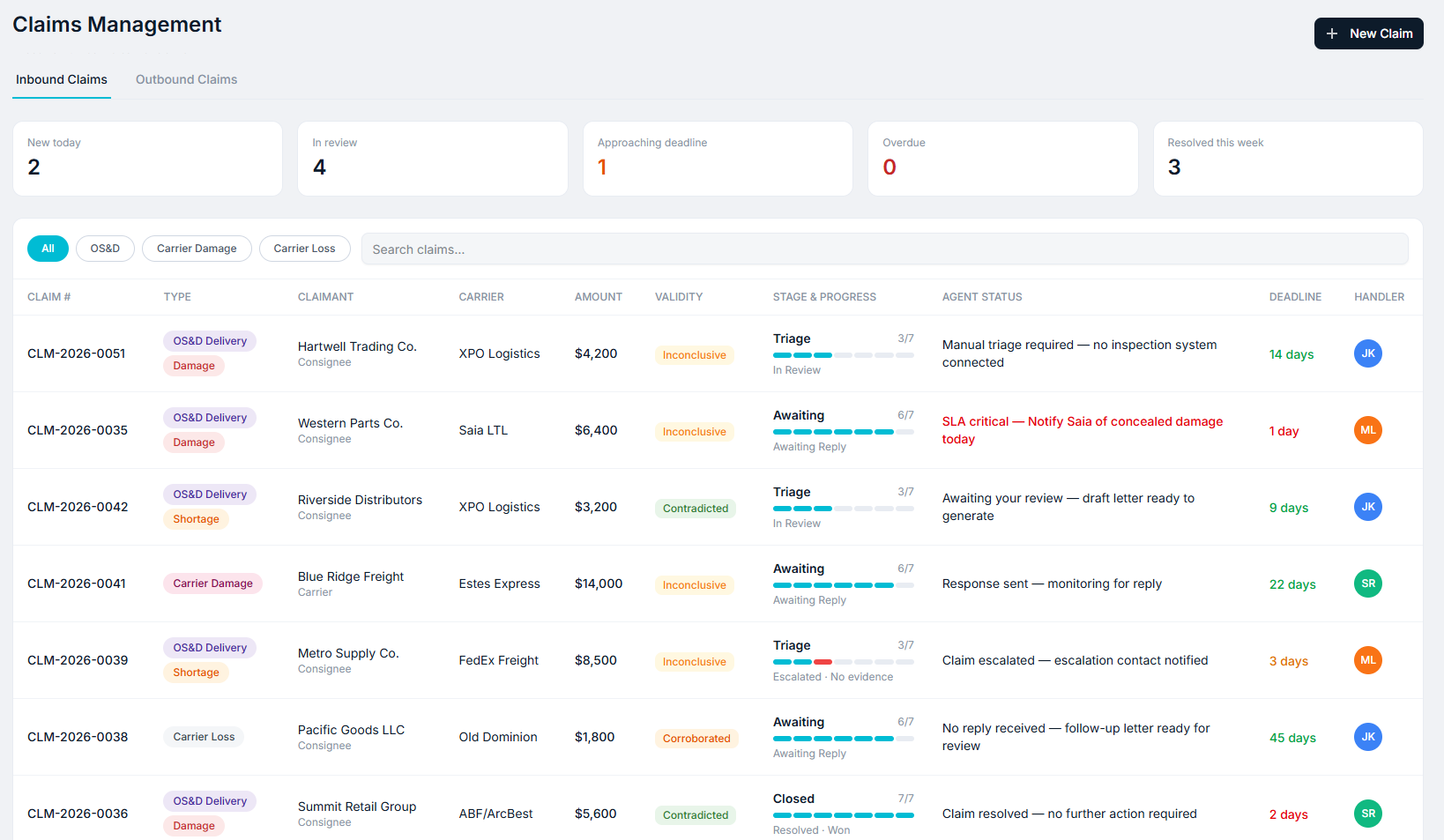
Claims Received and Claims Filed Tabs
Two tabs at the top of the page switch the queue between claim directions:
- Claims Received — claims filed against your organization by consignees or carriers
- Claims Filed — claims your team has filed against carriers
Each tab has its own KPI strip, filter chips, and table columns, described below. The New Claim button in the top right follows the active tab — it opens the Claims Received or Claims Filed intake wizard accordingly.

KPI Strip
Five summary tiles across the top of the page give an immediate operational snapshot. On the Claims Received tab:
- New Today — claims created in the current day
- In Review — claims currently being assessed by a handler
- Approaching Deadline — claims with a response window closing within 7 days
- Overdue — claims that have breached their response deadline
- Resolved This Week — claims closed in the current week
On the Claims Filed tab, the tiles reflect the recovery workflow instead:
- New Today — claims filed created in the current day
- In Progress — claims filed still being worked
- Approaching Deadline — claims with a filing or response window closing soon
- Overdue — claims that have breached a deadline
- Recovered This Month — dollar value recovered from carriers in the current month
Filtering and Search
Use the filter chips at the top of the queue to narrow the claim list by type. On the Claims Received tab:
- All — shows every claim regardless of type
- OS&D — shortage, damage, overage, and combined claims
- Carrier Damage — transit damage claims
- Carrier Loss — lost shipment claims
Concealed damage claims appear under All.
Use the search bar to find a specific claim by claim number, claimant name, carrier, or shipment identifier.
Claims Queue Table
Each row in the queue represents a single claim. On the Claims Received tab, the following columns are displayed:
| Column | Description |
|---|---|
| Claim # | Unique claim identifier — click to open the claim workspace |
| Type | Claim type badge, with OS&D subtype badge where applicable |
| Claimant | Name of the consignee or carrier that filed the claim |
| Carrier | Carrier associated with the shipment |
| Amount | Claimed dollar amount |
| Validity | Agent's assessment of the claim against the inspection evidence |
| Stage & Progress | Visual progress indicator showing where the claim is in its lifecycle |
| Agent Status | Plain-language description of what the agent is currently doing on this claim |
| Deadline | Response deadline, color-coded by urgency |
| Handler | Assigned team member |
The current status is shown in the secondary line of the Stage & Progress column.
On the Claims Filed tab, two columns differ: Filed Against replaces Claimant (the carrier the claim was filed against), and Strength replaces Validity (the agent's assessment of your evidence position — Strong · Moderate · Weak).
Stage & Progress
The Stage & Progress column gives a compact visual summary of each claim's lifecycle position. Each row shows three elements:
- Stage name and step counter — for example, "Triage · 3/7" shows the current stage and how far through the 7-stage lifecycle the claim has progressed
- Segmented progress bar — seven segments corresponding to the seven stages: Intake · Evidence · Triage · Draft · Sent · Awaiting · Resolved. Completed and current stages are filled teal; pending stages are gray
- Secondary status line — the current status with additional context where relevant, such as "Awaiting Reply" or "Won · Resolved"
Escalated claims show a red segment at the stage where escalation occurred, and all subsequent stages are grayed out until the claim is returned to active handling.
Claim Statuses
| Status | Meaning |
|---|---|
| New | Claim created — inspection lookup and triage are running |
| Awaiting Inspection Link | No inspection record matched automatically — the claim is parked until a handler links a shipment record manually, after which triage re-runs |
| In Review | Triage complete — handler is reviewing evidence and deciding next action |
| Response Drafted | Agent has generated a draft — handler is reviewing before sending |
| Response Sent | Response delivered to counterparty — awaiting reply |
| Awaiting Reply | Active waiting state — agent managing follow-up timer and deadlines |
| Escalated | Claim requires attention beyond the standard handler — SLA breach, high risk, or manual escalation |
| Resolved | Claim resolved and archived — no further action expected |
Claims Filed share the same lifecycle, but three statuses use demand terminology instead: Demand Drafted, Demand Sent, and Awaiting Response.
Resolved claims received show their resolution subtype in the secondary status line: Won, Accepted, Partially Accepted, or Withdrawn. Resolved claims filed use recovery outcomes instead: Recovered, Partially Recovered, Denied, or Withdrawn.
Deadline Urgency
The Deadline column is color-coded to reflect urgency:
- Green — plenty of time remaining
- Amber — within 7 days of deadline
- Orange — within 3 days
- Red — within 1 day or breached
Note: Concealed damage claims have a much tighter window — 5 business days from delivery for most carriers, and 48 hours for Saia. These are flagged prominently when a claim is created.
Creating a New Claim
Click the button in the top right of the Claims Queue to open the claim intake wizard — it reads New received claim or New filed claim depending on the active tab. See Creating a Claim for the Claims Received walkthrough and Claims Filed for the Claims Filed one.
Opening a Claim
Click any row in the queue to open that claim's workspace. See Claim Workspace for a full walkthrough of what's available inside each claim.