Claims Settings
Claims Settings lets you configure how Claims Management behaves for your organization. Settings are applied at the organization level and affect all claims.
Access Claims Settings from the Claims sub-navigation.
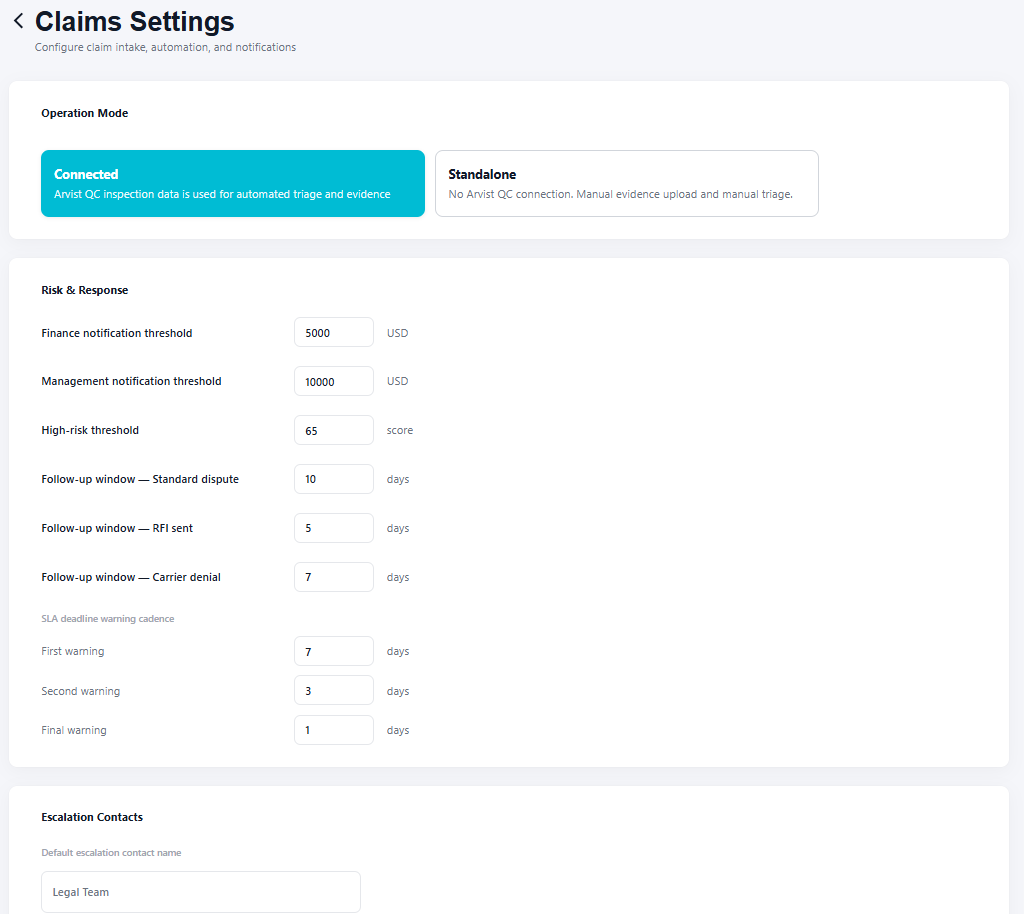
Operation Mode
| Mode | Description |
|---|---|
| Connected (default) | Arvist's inspection database is active. Inspection records are retrieved automatically when a claim is created and triage runs automatically based on the evidence found. |
| Standalone | No inspection database connection. Evidence is uploaded manually by the handler and triage is completed by hand before the agent activates. All other Claims Management features work identically. |
Choose Standalone if your organization has not yet deployed Arvist's Shipment Inspection solution, or if you are running Claims Management at a site that does not have active inspections.
WMS Integration
If your WMS is connected to Arvist, the BOL number can be pulled automatically and stored against shipment records at the time of inspection — meaning it is available instantly when a claim arrives and the inspection lookup runs.
Contact your Arvist representative to configure WMS integration. If WMS integration is not available, the BOL number can be entered manually on the claim record.
PRO Number Capture
The carrier PRO number is the most commonly cited identifier in carrier claim letters. Because it is assigned by the carrier after pickup, it is not available at the time of inspection.
| Method | Description |
|---|---|
| Manual (default) | Handler enters the PRO number against the claim record once the carrier assigns it at pickup. |
| Automated (TMS / EDI 214) | PRO number is received automatically via TMS feed and stored against the inspection record. Contact your Arvist representative to configure. |
Notification Thresholds
Arvist automatically routes internal notifications to Finance/AR and Management when a claim meets configured value thresholds.
| Setting | Default | Description |
|---|---|---|
| Finance / AR notification threshold | $5,000 | Claims at or above this amount trigger an automatic notification to Finance/AR |
| Management notification threshold | $10,000 | Claims at or above this amount trigger an automatic notification to Management |
Risk Score Threshold
| Setting | Default | Description |
|---|---|---|
| High-risk score threshold | 65 | Claims scoring at or above this value are classified as High risk. Scores below this threshold are Medium (36–64) or Low (0–35). |
The risk score is a composite of the claimed amount, validity signal, claimant profile, and evidence chain completeness. Adjusting this threshold changes where the High classification begins.
Follow-up Windows
The follow-up timer starts automatically after a response is sent. When the timer expires with no reply received, the agent drafts a follow-up letter and surfaces it for handler review.
| Situation | Default | Configurable |
|---|---|---|
| Dispute letter sent — standard | 10 business days | Yes |
| RFI sent | 5 business days | Yes |
| Carrier denial rebuttal sent | 7 business days | Yes |
| Concealed damage claim | 2 business days | No — fixed |
SLA Warning Thresholds
The agent begins alerting the handler as a deadline approaches. Three threshold levels trigger progressively urgent notifications:
| Threshold | Default | Alert Recipients |
|---|---|---|
| First warning | 7 days remaining | Handler — in-app notification |
| Second warning | 3 days remaining | Handler and Manager — in-app and email |
| Final warning | 1 day remaining | Handler, Manager, and Escalation Contact — urgent alert |
At 0 days remaining, the claim automatically moves to Escalated and the escalation contact is notified.
Note: The SLA windows themselves — for example, 9 months for Carmack filings or 5 business days for concealed damage — are set by law and carrier tariff and are not configurable. Only the warning thresholds above are adjustable.
Escalation Contact
When a claim is escalated — by the handler, by SLA breach, or by the agent — the escalation contact is notified automatically with a claim summary and recommended next steps.
| Field | Description |
|---|---|
| Escalation contact name | Name of the handler or manager who receives escalated claims |
| Escalation contact email | Email address for escalation notifications |